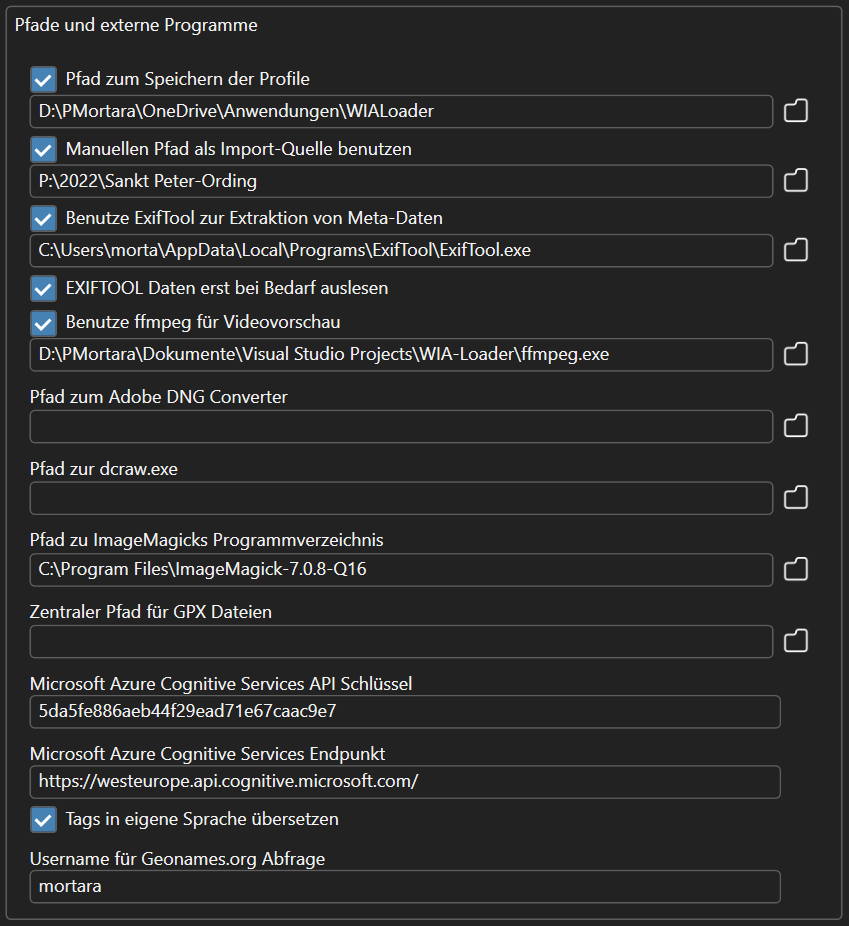
Path for saving profiles
Here you can set where WIA-Loader stores your import profiles. This can be any path on your computer's hard drive, or for example a folder that is synced by a cloud storage tool like DropBox or OneDrive. This way you always have a backup of your profiles and can also use them on several computers.Use a manually defined path as import source
The path set here shows up in the list of picture sources and can be used for import operations. This feature lets you use WIA-Loader even if your camera or memory card can't be recognized directly. You can choose any path on your hard drive here.Path to ExifTool
Here you set the path to Phil Harvey's ExifTool. It allows extracting substantially more metadata from images than the built-in .NET Framework functions. WIA-Loader can optionally check whether a newer version of ExifTool is available.Use ffmpeg for video previews
ffmpeg can be used to generate preview thumbnails for videos.Path to the Adobe DNG Converter
The 'DNG Converter' import step requires the path to Adobe's DNG Converter to be set here.Path to dcraw.exe
DCRaw can be used to process RAW images, for example to 'develop' JPEG files from them.Path to the ImageMagick program directory
The path to ImageMagick has to be set here in order to use the ImageMagick import step.Path for GPX files
WIA-Loader can optionally look for GPX files in this path during geocoding.AI configurations (automatic tagging)
The settings for automatic image tagging are no longer configured here, but in a dedicated AI Configurations dialog, which you can open from the main menu or from the context menu of the group view. There you can create one or more configurations, e.g. for a local LLaVA model, for OpenAI's ChatGPT, or for a local LM Studio server.More about this here.