Viewing pictures
To help you pick out good and bad images, WIA-Loader lets you quickly browse through all the
images on a source in a larger view. This view is opened by double-clicking any image in the preview.
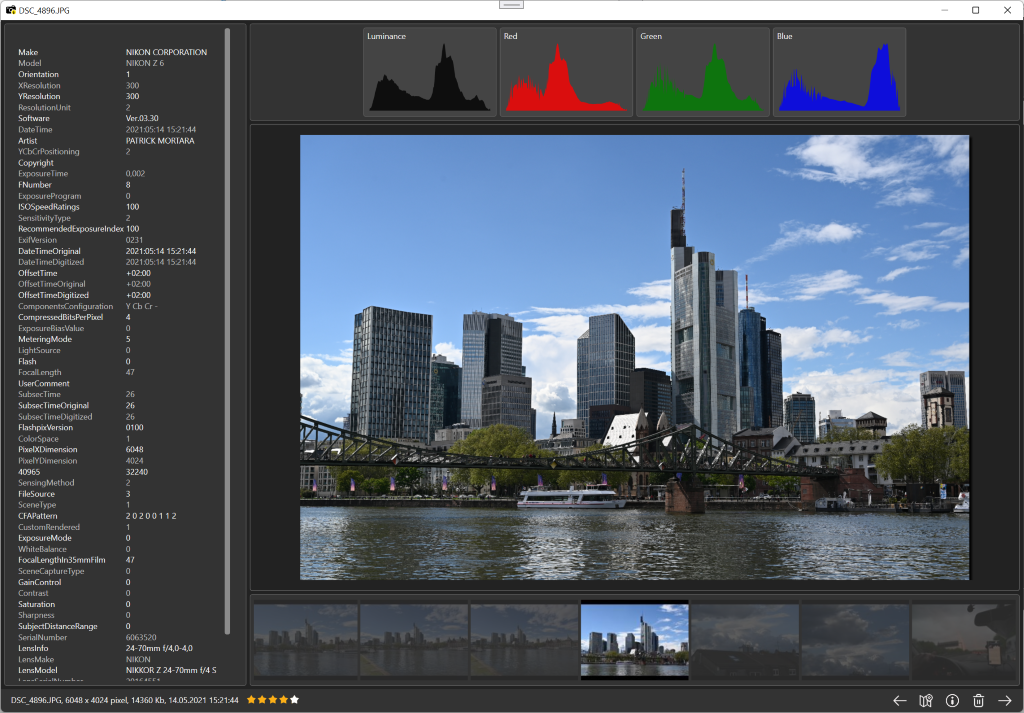
You can browse through all images either with the buttons in the lower right corner, or with
the arrow keys on your keyboard. Holding CTRL or SHIFT while browsing keeps the current image
crop/zoom for the next image.
The context menu and the toolbar at the bottom let you show various additional information for
each image, depending on what data is available in the image:
- EXIF metadata
- Histograms
- The camera's focus area/focus point
- The position where the image was taken, shown on a map
Several keyboard shortcuts are available in the image viewer:
- ESC: Closes the image viewer
- 0-5: Gives the image a rating. This is then available through the variable <RATING>
- Left arrow: Previous image
- Right arrow: Next image
- Space: Marks the image for import, or removes the mark
- DEL: Deletes the image
- x: 'Hides' the currently shown image, i.e. it won't be shown again until you restart WIA-Loader
or unhide it again from the main window's context menu.
- F5: Reloads the image